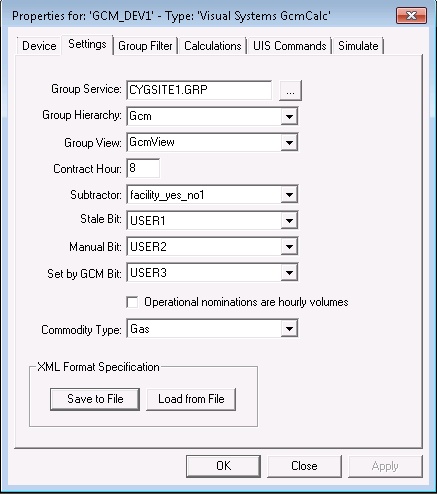
Use the Settings page to define advanced device settings, such as the group service, hierarchy and view, contract hour, subtractor inversion attribute, bit settings, daily nominations, and the commodity type. This page is also where you can save device settings to, or load device settings from an XML file.
Some of the fields configured on this page also need to be configured on the General properties page of the GCM Nomination Grid. See Configuring General Properties for more information.
|
|
| Sample Settings Page |
The following table lists and describes the fields found under the Settings page.
| Parameter | Description |
|---|---|
|
Group Service |
Specifies the Site.Service of the Group service containing the group hierarchy. Be sure to select the Group service from the correct site. This is the same as that entered on the Settings page of the GCM device editor. |
|
Group Hierarchy |
Specifies the name of the group hierarchy you want to use and see displayed. The available options correspond to group hierarchies already set up in your Group Service for a given site. Only the names of possible root nodes appear. This is the same as that entered on the Settings page of the GCM device editor. |
|
Group View |
Specifies the parent-child relationships between the components associated with the same component hierarchy root node. Multiple views may be created to provide different methods of filtering and displaying data, such as State, Route, and Operator, or Operator and State. This is the same as that entered on the Settings page of the GCM device editor. |
|
Contract Hour |
Specifies the contract hour in the time zone of a client computer. Determines the hour at which the contract day begins. This property cannot be changed while the control is running. |
|
Enable a facility yes/no attribute from this drop-down menu if you want certain values in your GCM calculations table to invert. Note: The Apply subtractor property on the Calculations page must also be selected in order for this attribute to affect a specified value. |
|
|
Stale Bit |
Determines which bit indicates a stale value. Calculations using inputs with this bit set have the bit set on the output. |
|
Manual Bit |
Determines which bit indicates a manual value. Calculations using inputs with this bit set have the bit set on the output. |
|
Set by GCM Bit |
Determines which bit indicates a GCM-set value. All output calculation results have this bit set. |
|
Operational nominations are hourly volumes |
Check to indicate that operational nominations are multiplied by 24 to get daily nominations. |
|
Commodity Type |
Select the substance in the pipeline, Natural Gas or Petroleum Liquids product. Depending on the selection made here, the GCM editor displays different configuration fields for each commodity type on the Calculations page of the GCM device editor and the GCM Nomination Grid displays different output columns for each commodity type on the Columns page of the GCM Nomination Grid. Note: It's a good idea to create a separate device instance for each type of calculation, if both are required. |
|
XML Format Specification |
Click Save to File to save the device configuration to an XML definition file. Navigate to the desired file location, type the file name, and click Save. Or click Load from File to import the device configuration from a previously saved XML definition file. Navigate to the desired file, select it, and click Open. |

|
|
|

